You can set or change the fill color of an object.
1. Select the shape or text box to change. You can select multiple shapes with Multi Select.
2. Switch to the Shape tab.
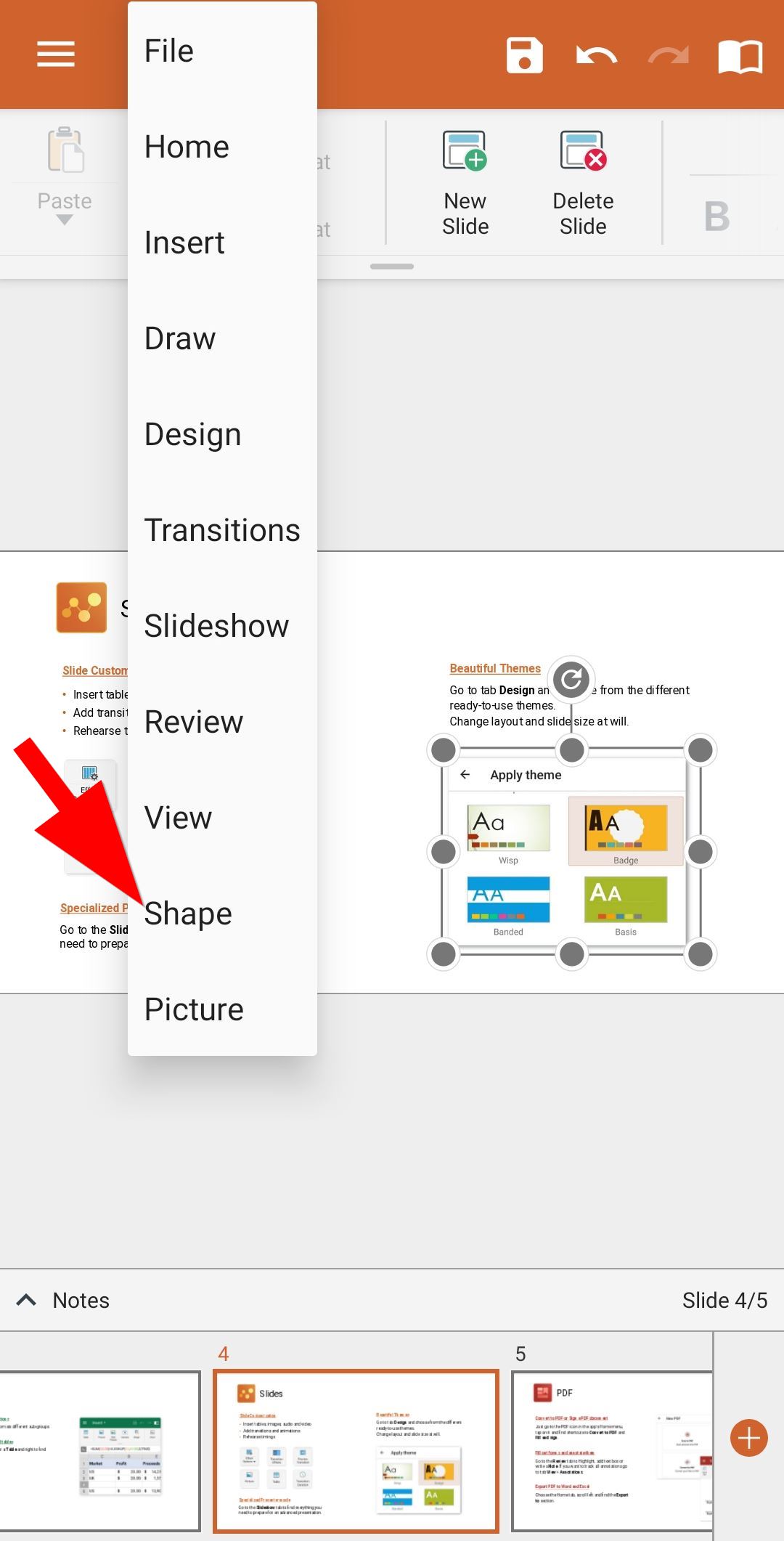
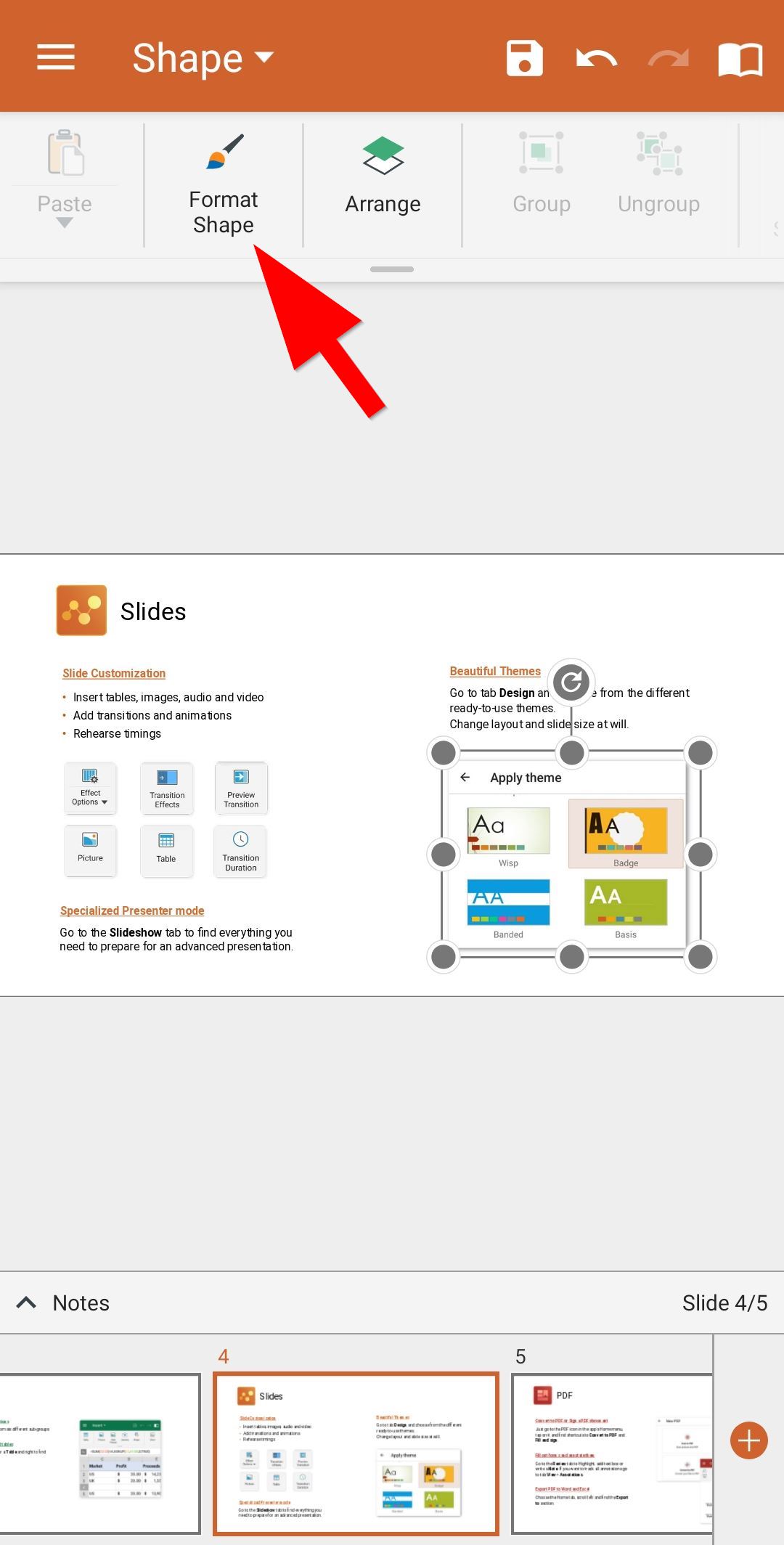
3. Tap Format Shape.
4. In the expandable bottom sheet, pick the color you want, or
tap More colors to create a custom color.
To remove the fill color, tap No Fill on the bottom of the Color picker.