Find contacts
You can use the Address Book on the ribbon, or search while composing a new message or event.
To search the Address Book
1. Click Address Book on the MobiMail ribbon.
If you have more than one account added to MobiOffice, you can narrow your search to a specific Address Book. Define the search scope by clicking the default All Contacts.
2. Start typing in the Search field. As you type, MobiMail will continually refine your search results.
Search for a contact while composing a new message
When you select the To, Cc, or Bcc buttons in a new message, MobiMail will display contact suggestions from the available Address books. As you type, you will see an alphabetized list of contacts, sorted by name.
Add a new contact to your Contact list
1. Open MobiMail and click Contacts.
2. Click New Contact.
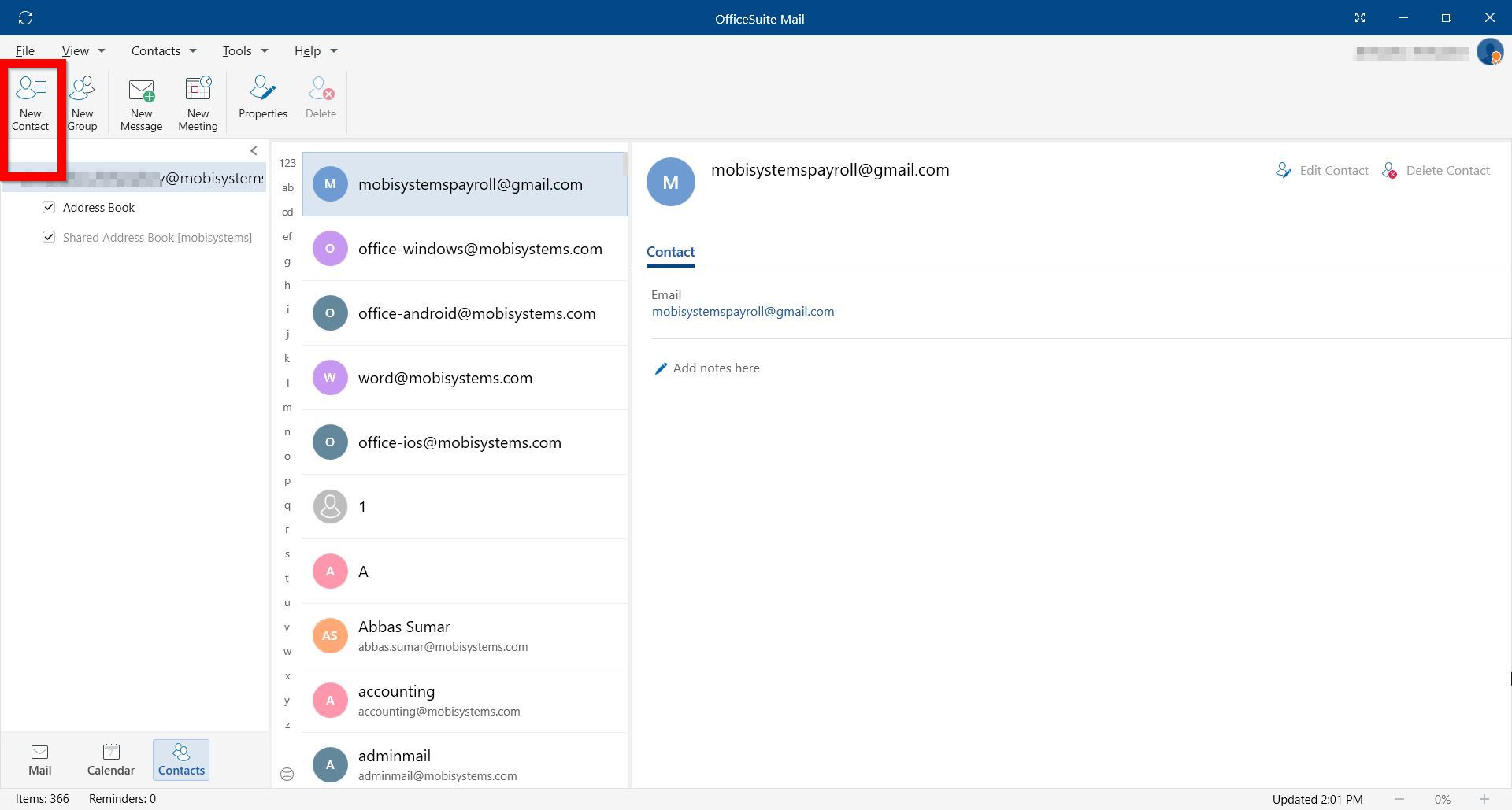
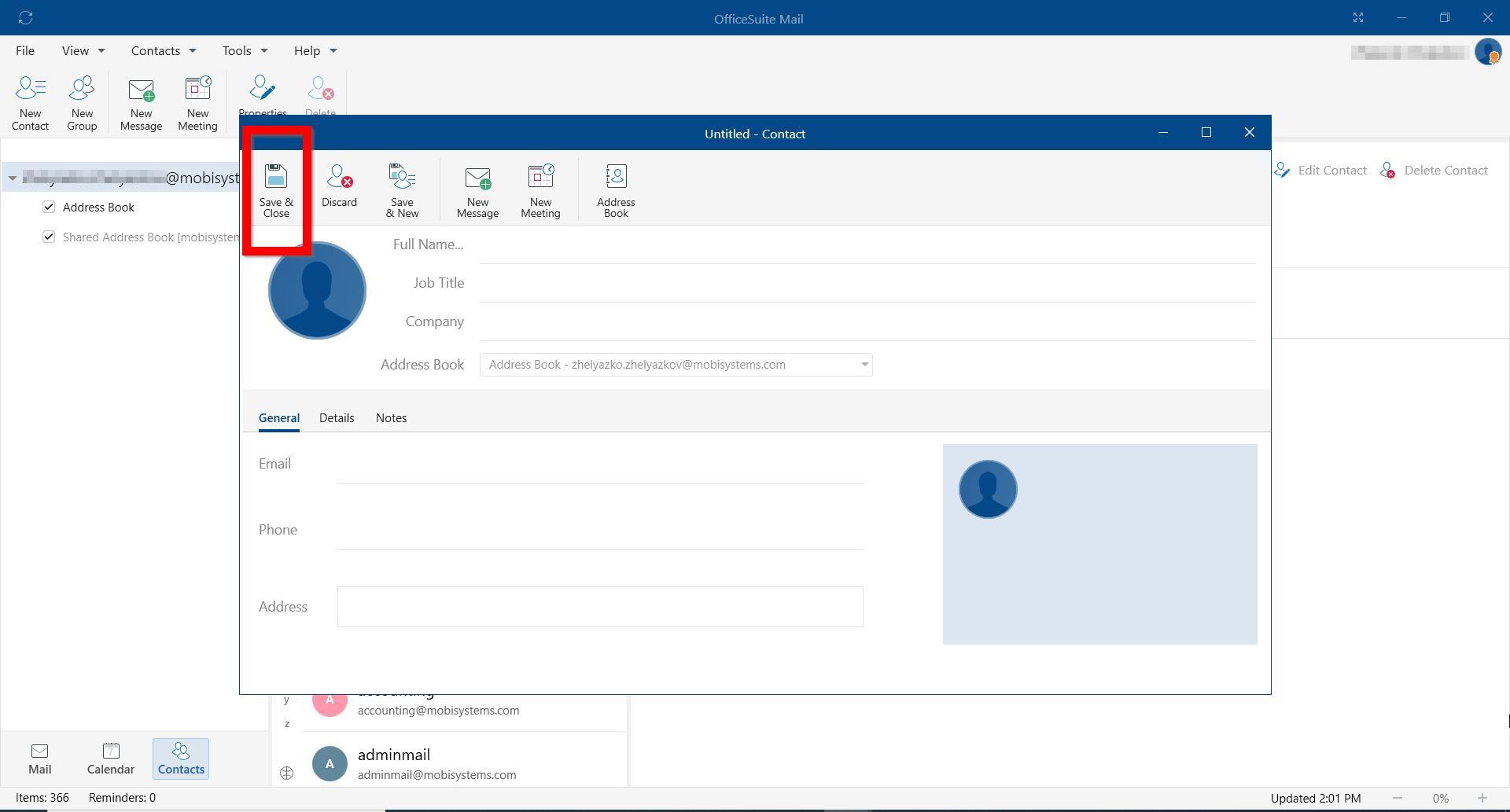
3. Enter the new contact’s info.
*Click Save & Close to confirm and close the window.
*Click Save & New to save the connection and continue adding new connections to your Contacts list.
Edit contacts info
Note: You can edit only contacts added by you in your Contacts list. You cannot edit a contact's details if it is part of a shared contact list.
1. Open your MobiMail and click Contacts.
2. Click a contact.
3. Click Edit Contact.
4. Confirm with Save & Close.