You can save your progress in an OfficeSuite Documents file with a few simple steps.
1. Open your OfficeSuite Documents file.
2. After making changes in the Documents file, click on the Save icon.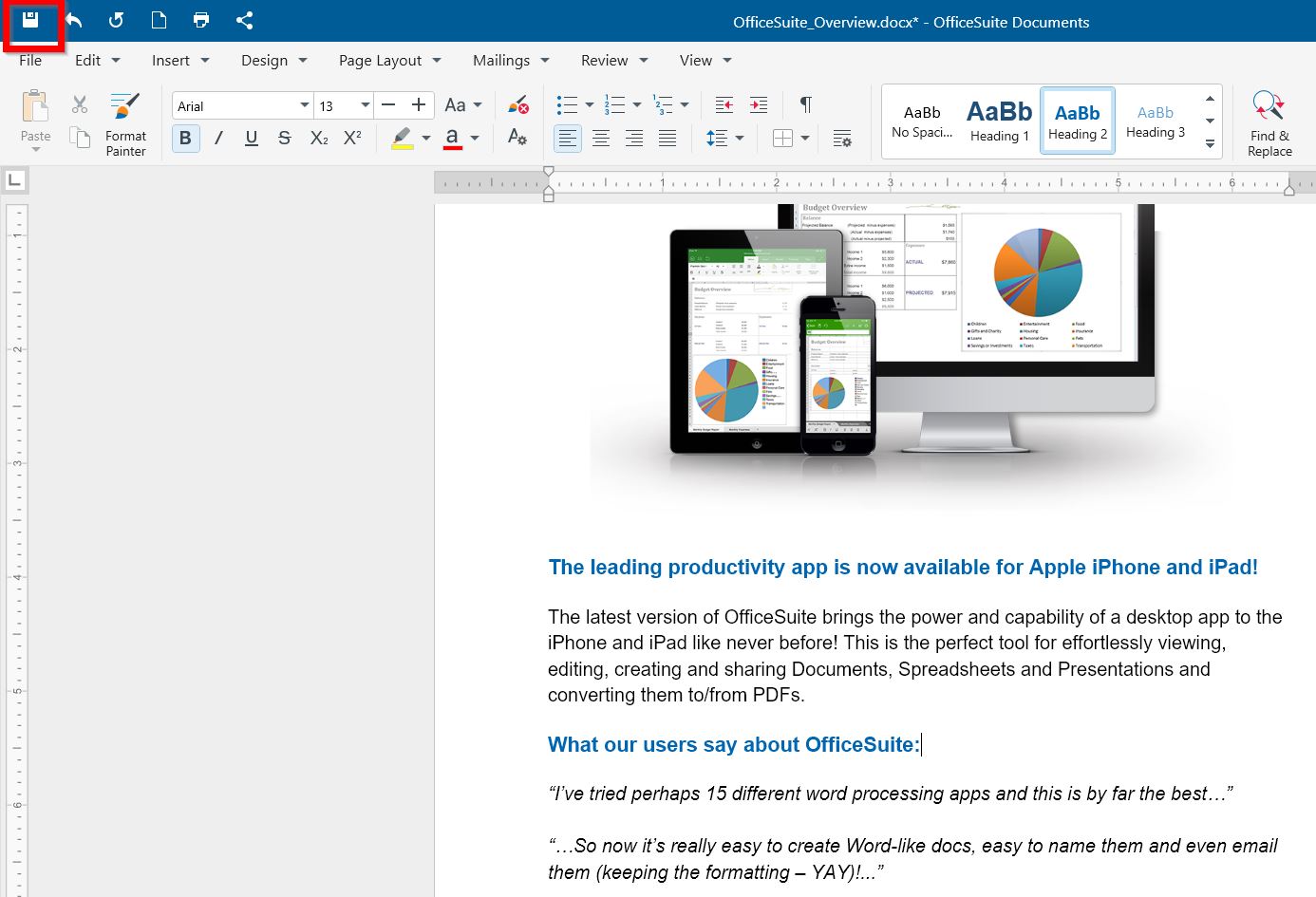
*An alternative way:
1. Click File.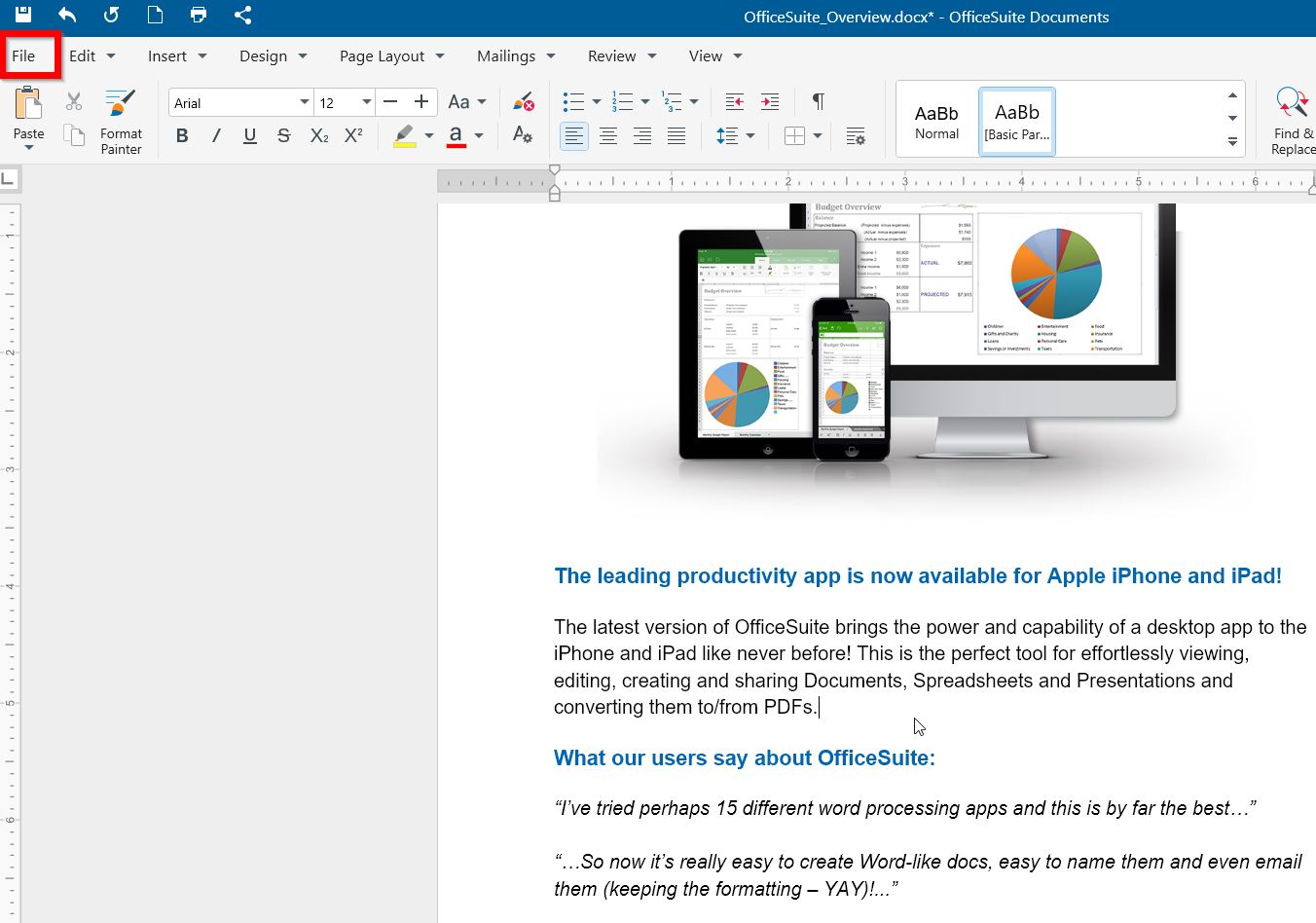
2. Select Save.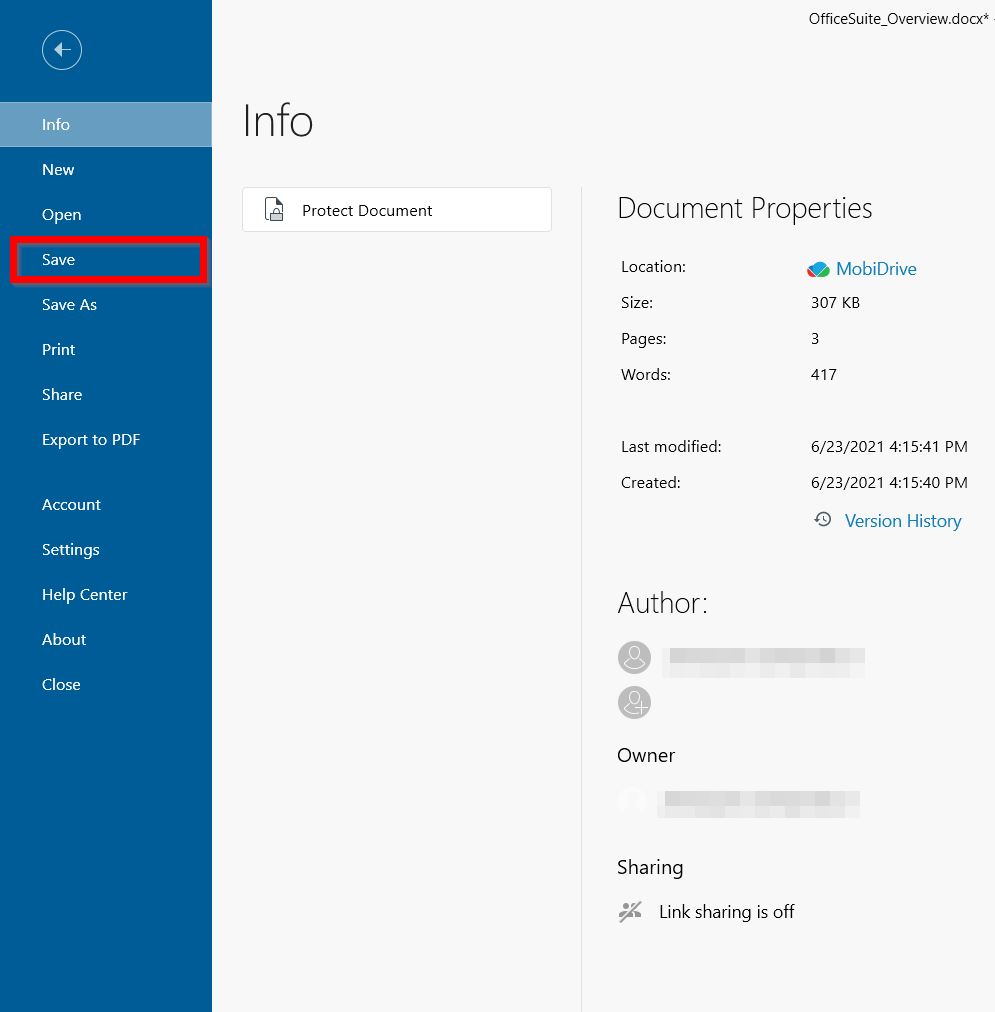
If you want to save your changes in a separate Documents file; change the file type, or save it in another destination:
1. Click File.
2. Select Save As.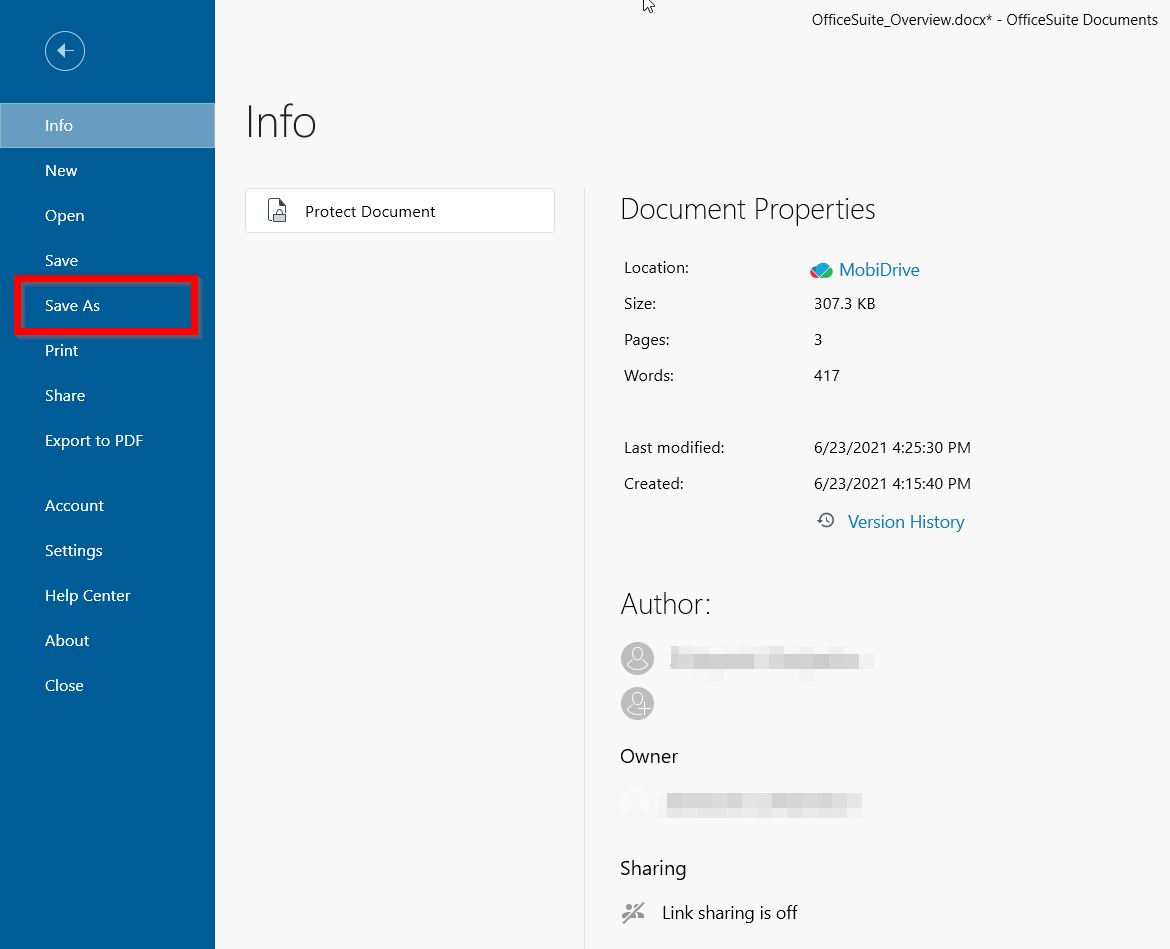
3. Type a name of the file.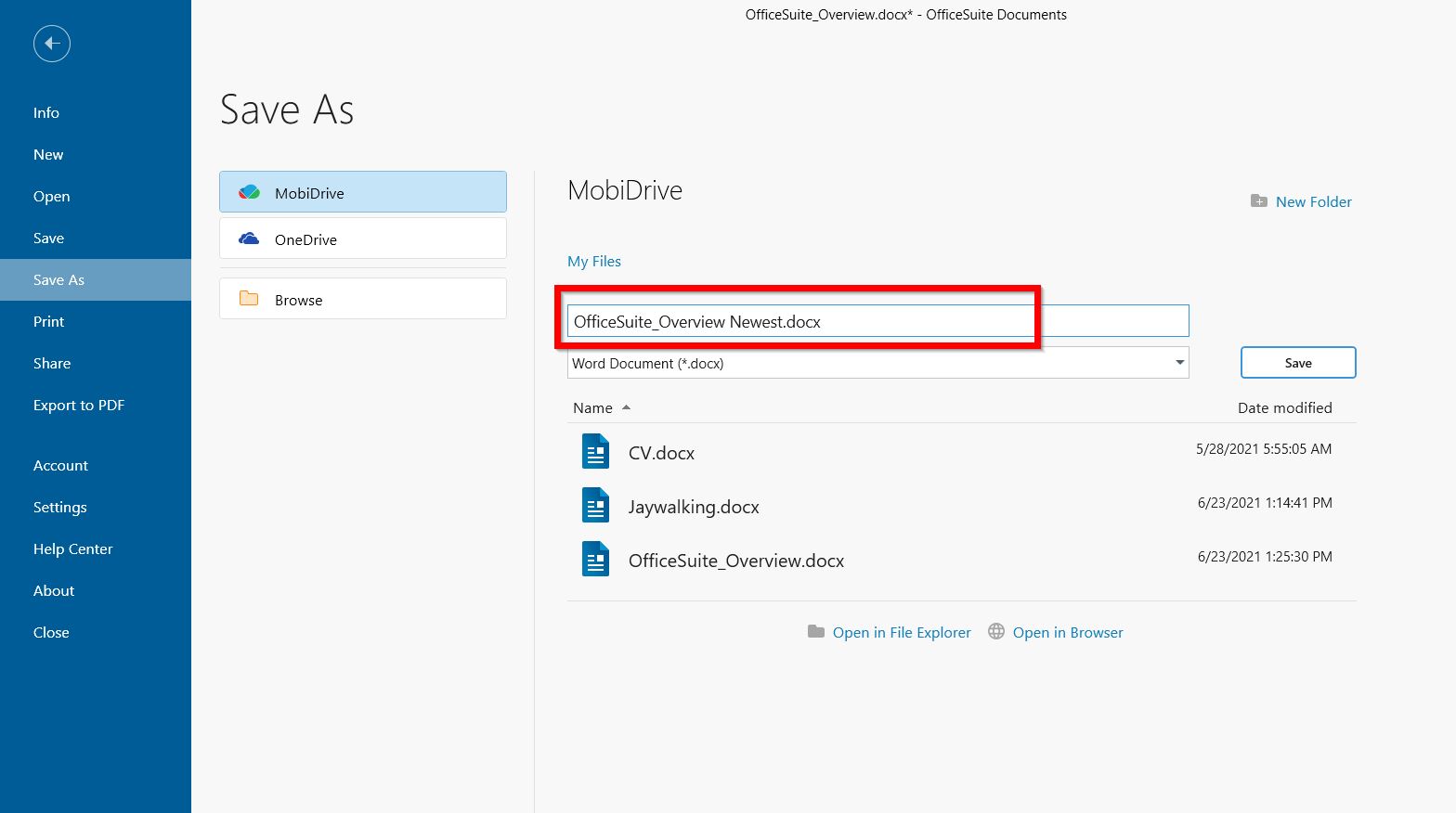
*If you want to change the file type, you can select from a number of options.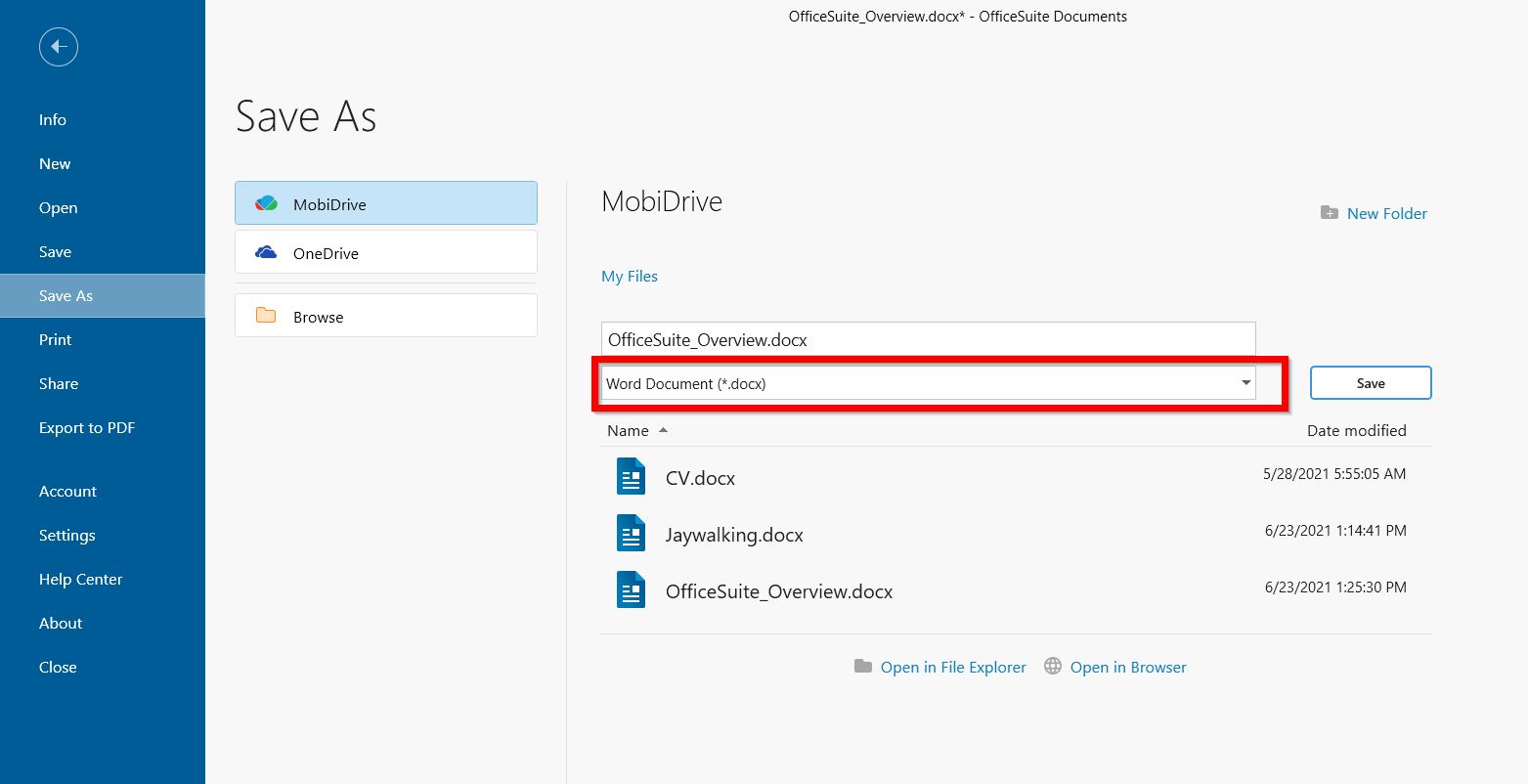
If you want to save the file in a specific destination, choose here: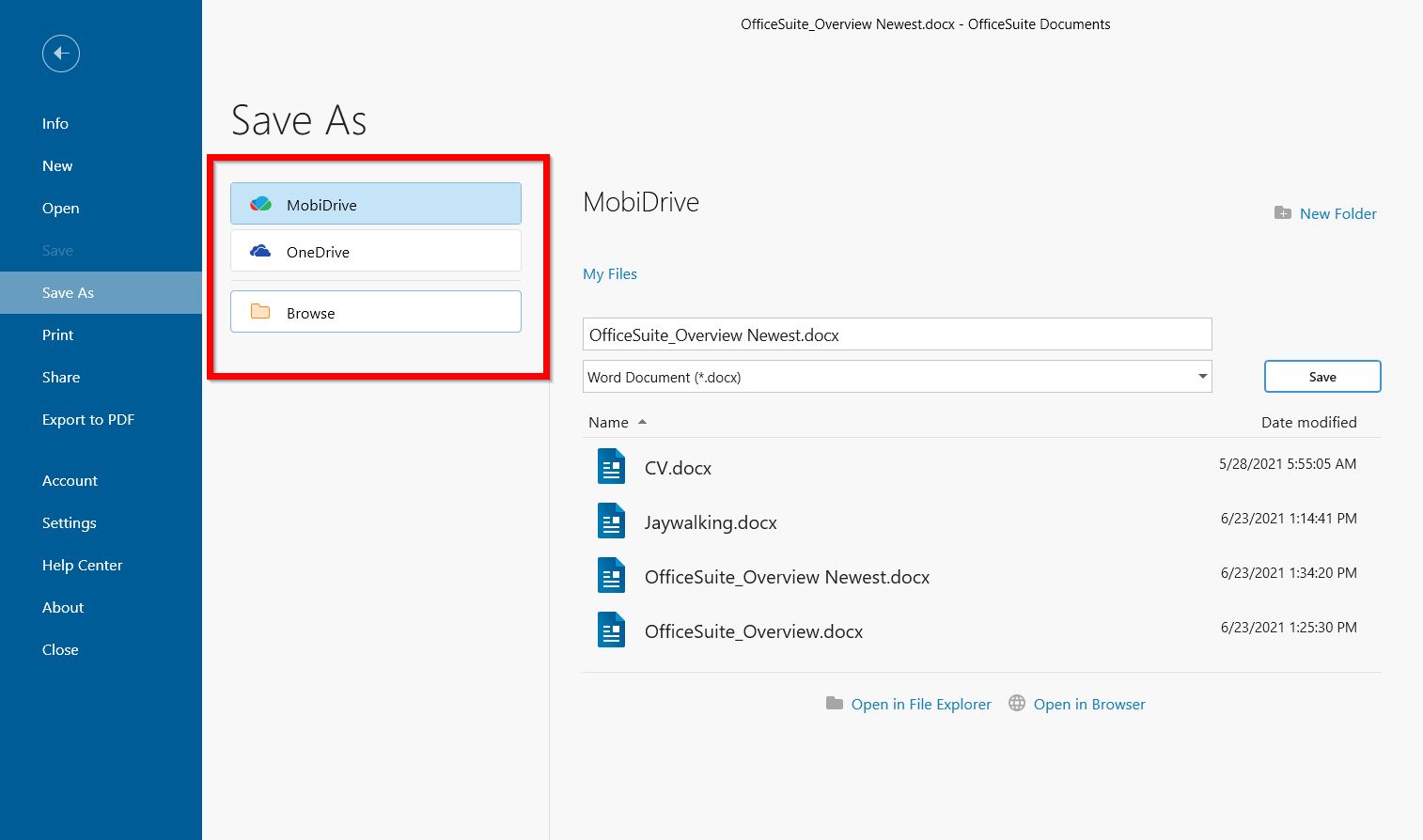
4. Click Save.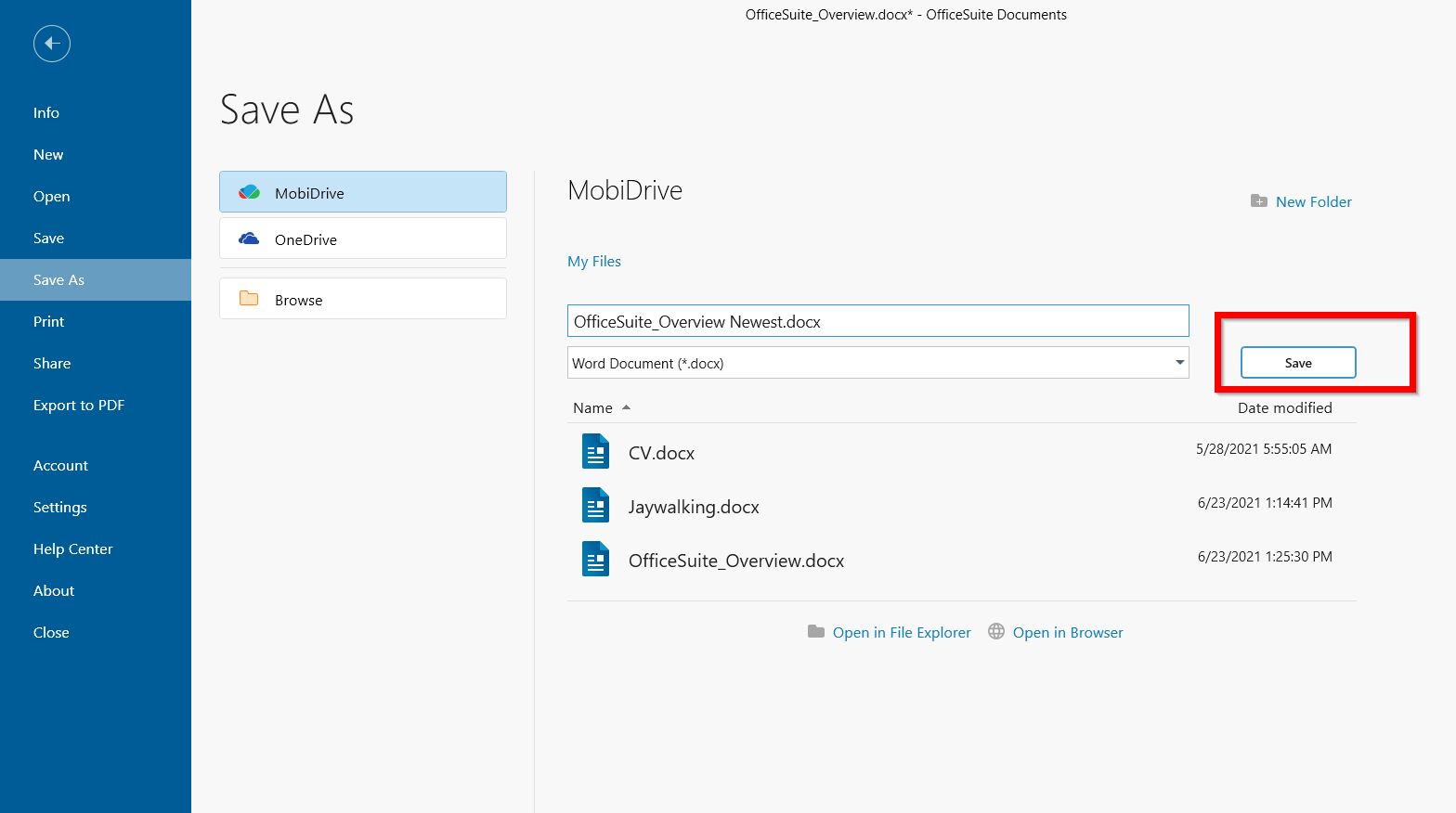
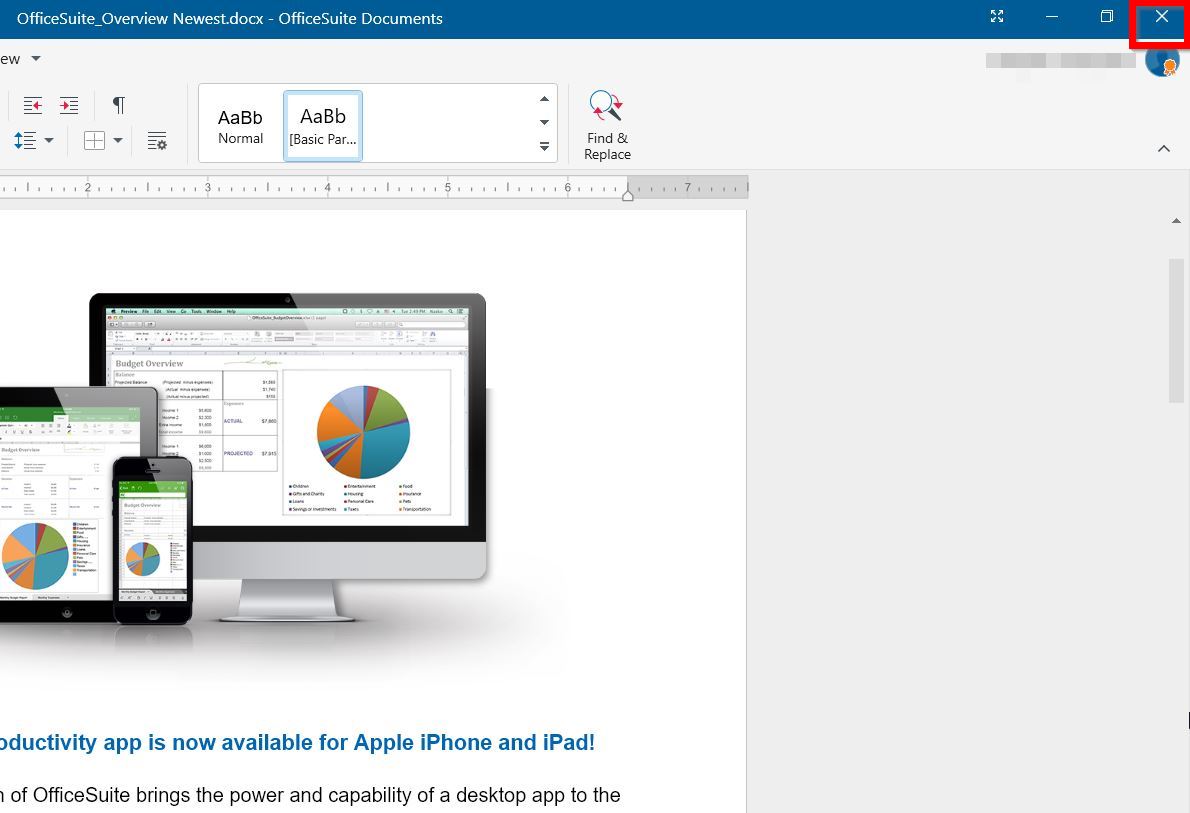
To close a file in OfficeSuite Documents, tap on the Close icon.