Work with header and footer
A header or footer can contain text, page number, or information about the document. You can create one header or footer for the entire document or have a different one for the first page or odd and even pages.
1. Double-click in the header or footer area, or in the Insert tab, select what you want to add:
- Header - add or change text for the header. Click on the Header drop-down for positioning options.
- Footer - add or change text for the footer. Click on the Footer drop-down for positioning options.
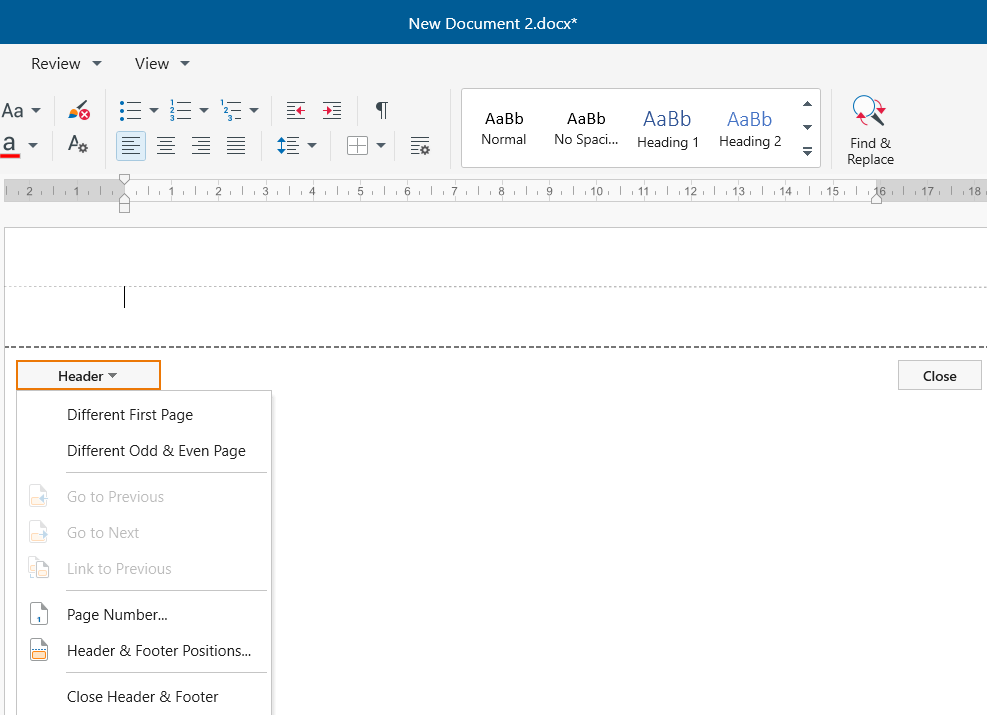
Page number
1. In the Insert tab, select Page number, or double click in the header or footer area, select Page number.
2. In the resulting Page number dialog, select the number format and starting page. Select Number format to select the format for the numbering, such as a, b, c or i, ii, iii for the intro.
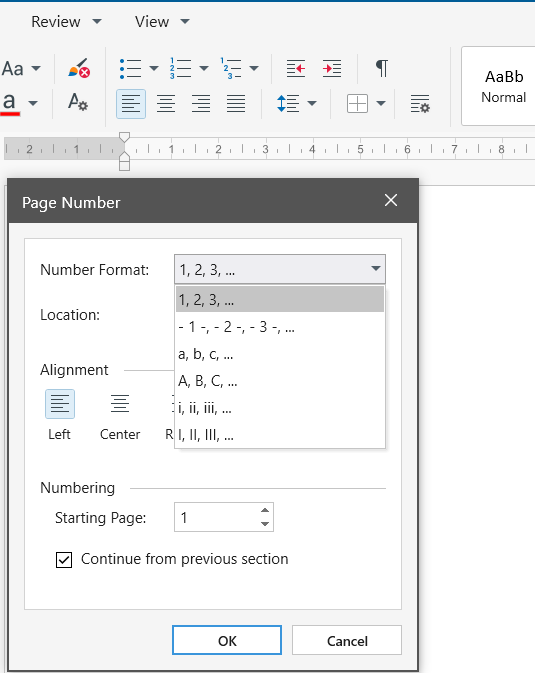
If you want the numbering to start with 1 on the second page,
1. Set Starting page to 0.
2. Uncheck Continue from Previous section.
3. Double click in the page number area.
4. Click the Header or Footer drop-down menu, click Different First page.