Create and save a spreadsheet to MobiDrive iOS
Create a spreadsheet
- Open OfficeSuite. Tap the New button on the bottom.
- To start from scratch, select Spreadsheet, or select Templates to explore the available templates.
Note that there are no templates other than those on the New document dialog.
Save your spreadsheet to MobiDrive
When you save your files to MobiDrive, you can share with others, and get to your files from anywhere - on your computer, tablet, or phone.
- Tap the menu in the top right, tap Save or Save as. Alternatively, tap the Back button in the top left, tap Save or Save as.
- Name your file. You can change the file format.
- Tap Save.
Make a spreadsheet available offline
You can make your MobiDrive-stored files available offline.
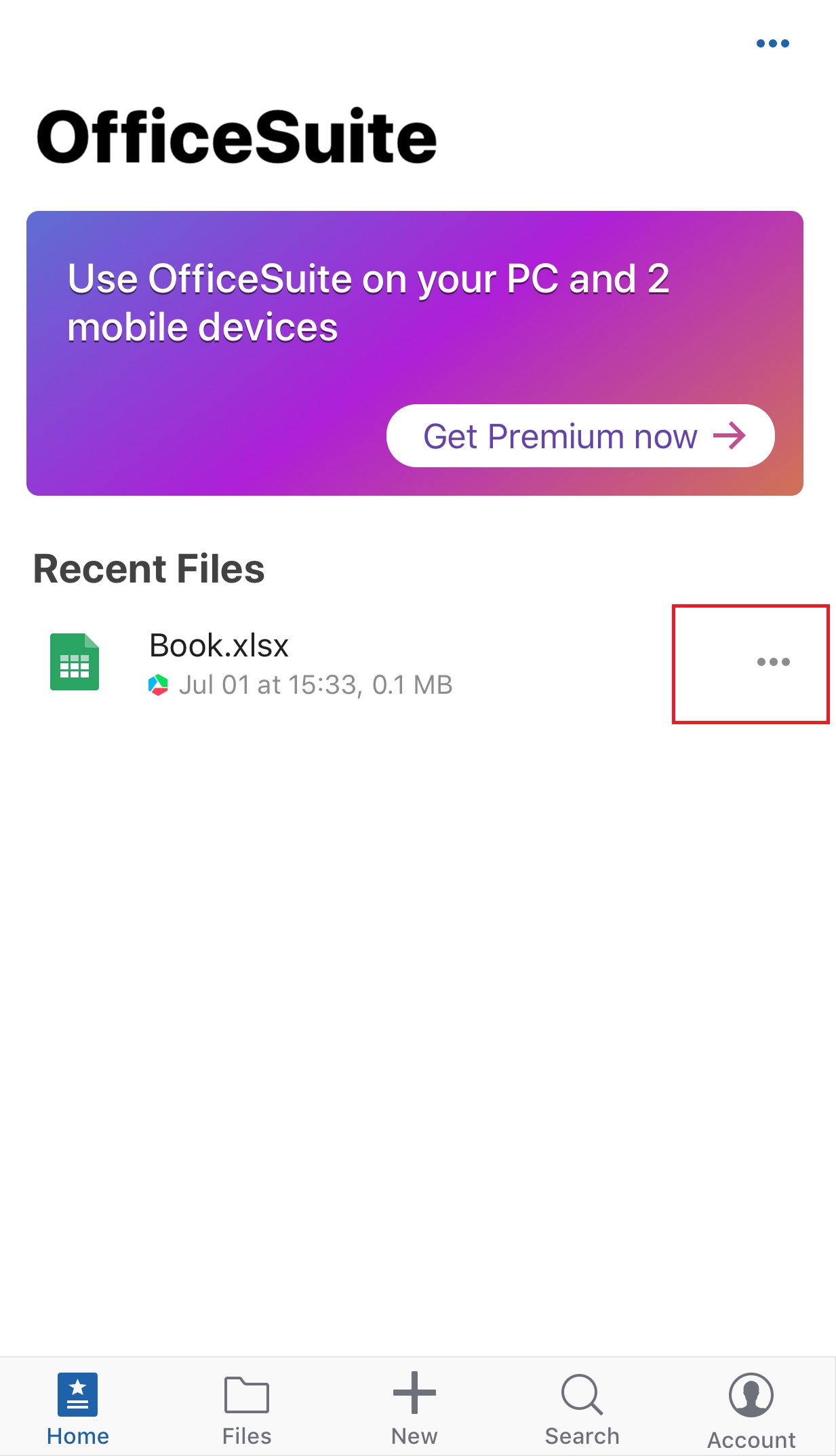
- Open OfficeSuite. On the Files tab, select MobiDrive.
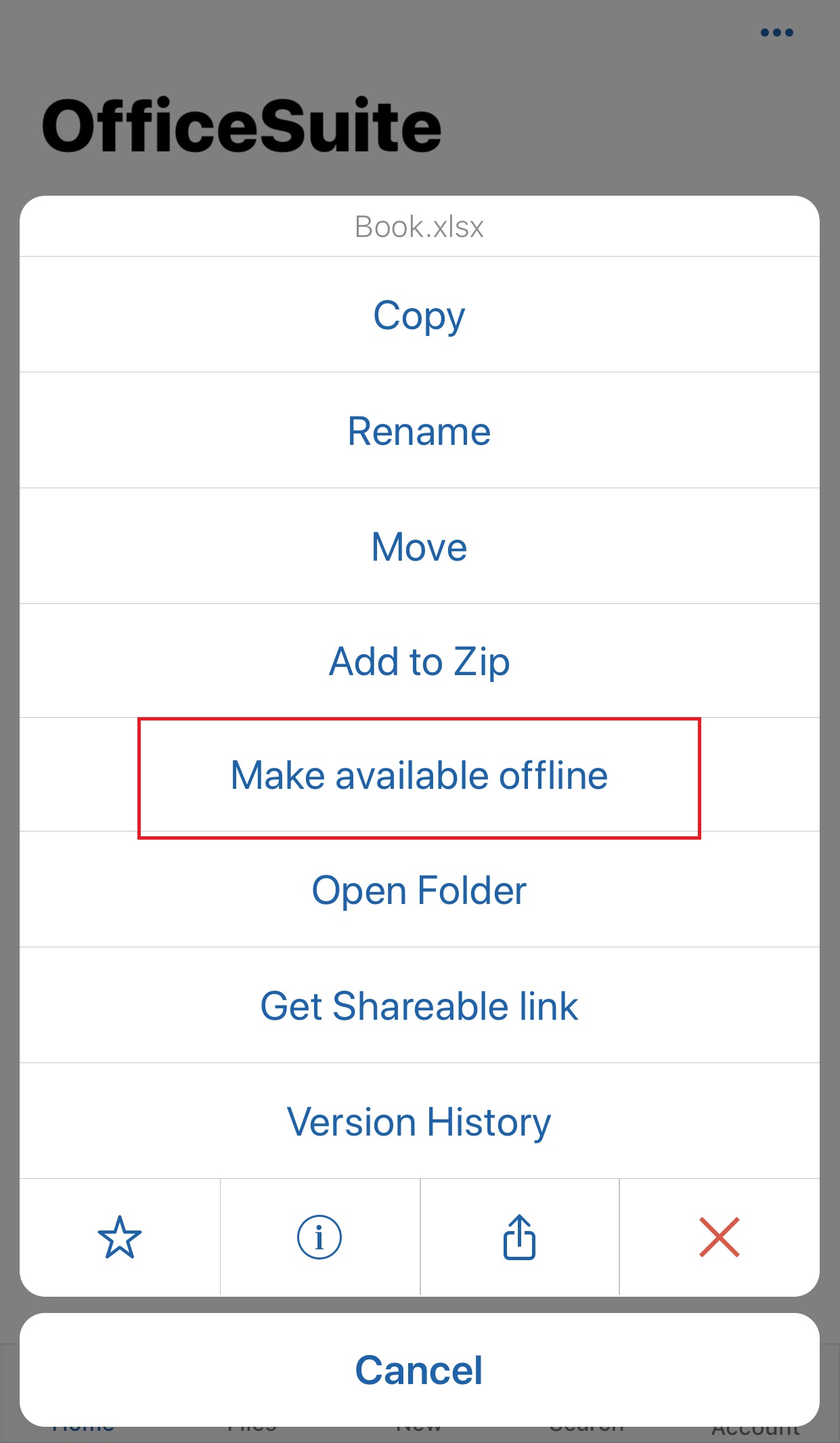
- Tap the file menu for additional options.
- Tap Make available offline.
 |
 |
Save elsewhere
Saving spreadsheets to MobiDrive is a convenient, but not the only option. You can save a file on your device or to a third cloud.
1. Open a spreadsheet. Tap the menu in the top right.
2. Tap Save or Save as. In the resulting file browser,
3. Navigate to select where you want it saved: locally (On my device) or to a third cloud.