Freeze or unfreeze rows or columns in Sheets for iOS
To pin data in the same place and see it when you swipe down, you can freeze rows or columns.
Freeze or unfreeze rows
1. Select the row below the one you want to freeze. For example:
you want to freeze row 1. Then, select row 2.
2. On the View tab, swipe the toolbar to reveal more options.
3. Toggle on or off the Freeze button to freeze to unfreeze the selection.
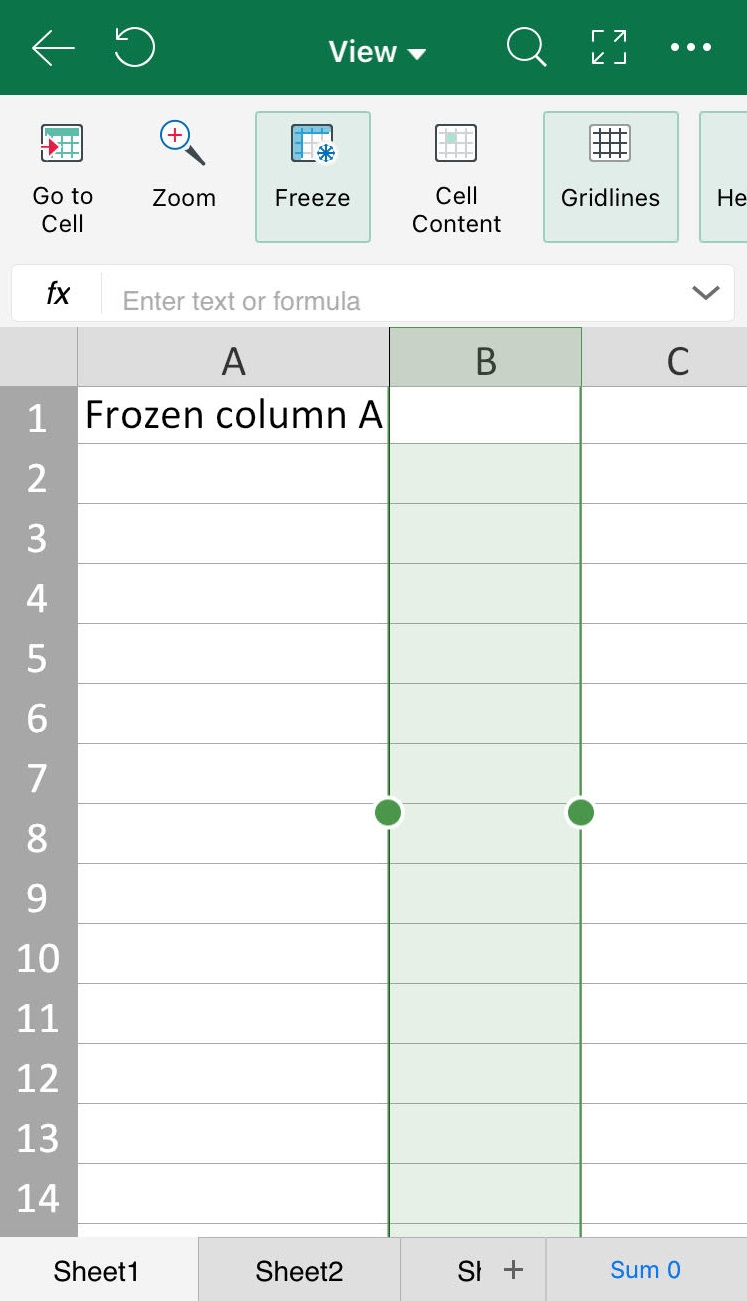
Freeze or unfreeze columns
1. Select the column to the right of the one you want to freeze. For example:
you want to freeze column A, then select column B.
2. On the View tab, toggle on or off the Freeze button to freeze to unfreeze the selection.